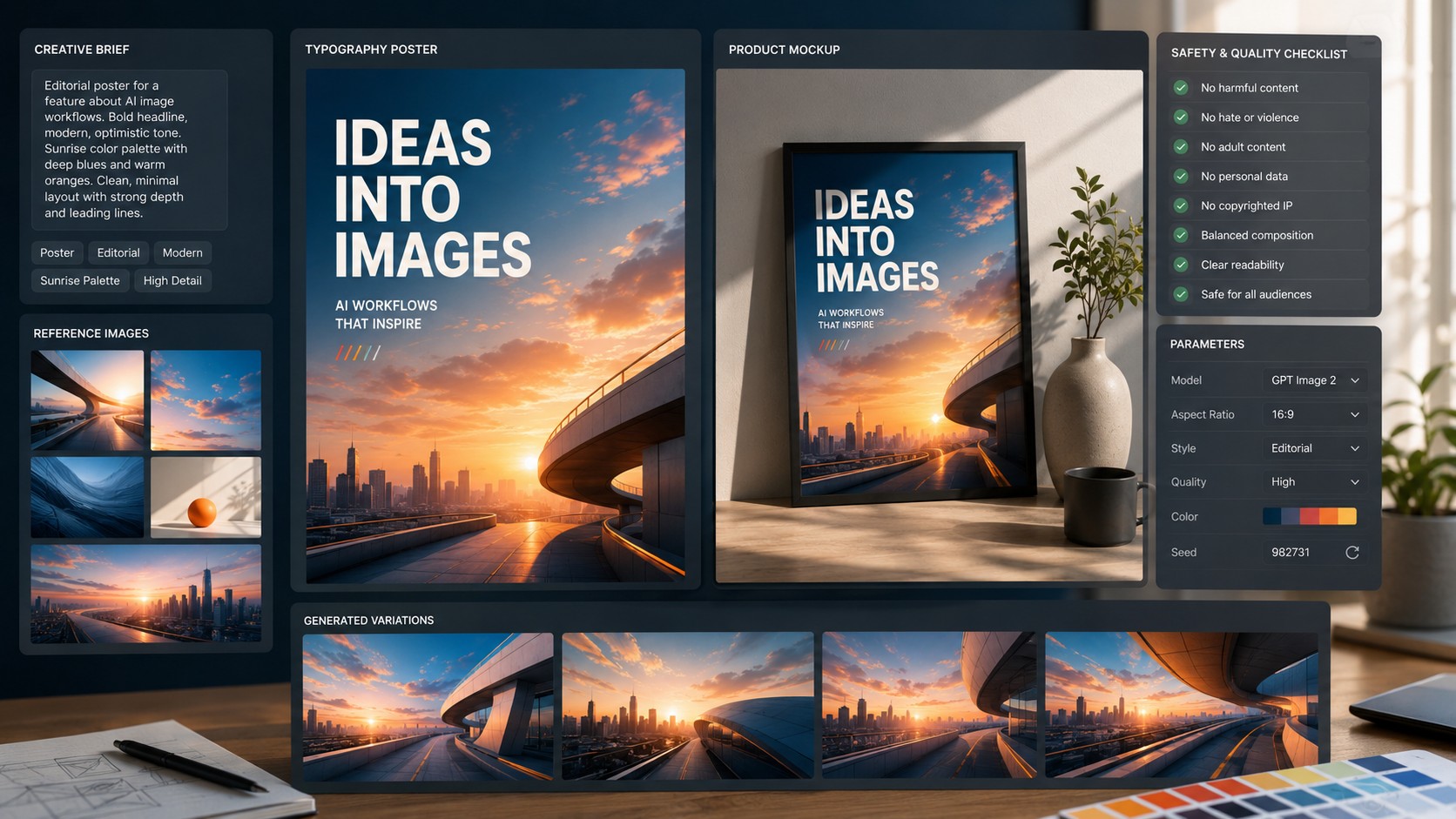
GPT Image 2 AI image generator workflows matter because image generation is moving from one-off prompt art toward brief-driven design, reference-aware editing, typography, product mockups, and reusable creator pipelines.
What GPT Image 2 changes for AI image workflows
OpenAI lists GPT Image 2 as a state-of-the-art image generation model for both image generation and editing, with text and image as supported inputs and image output through image generation and image edit endpoints. For SEO and creator teams, the useful shift is not just better-looking output. It is a more structured workflow where a prompt brief, reference assets, aspect ratio, and revision plan can be treated like a small creative system.
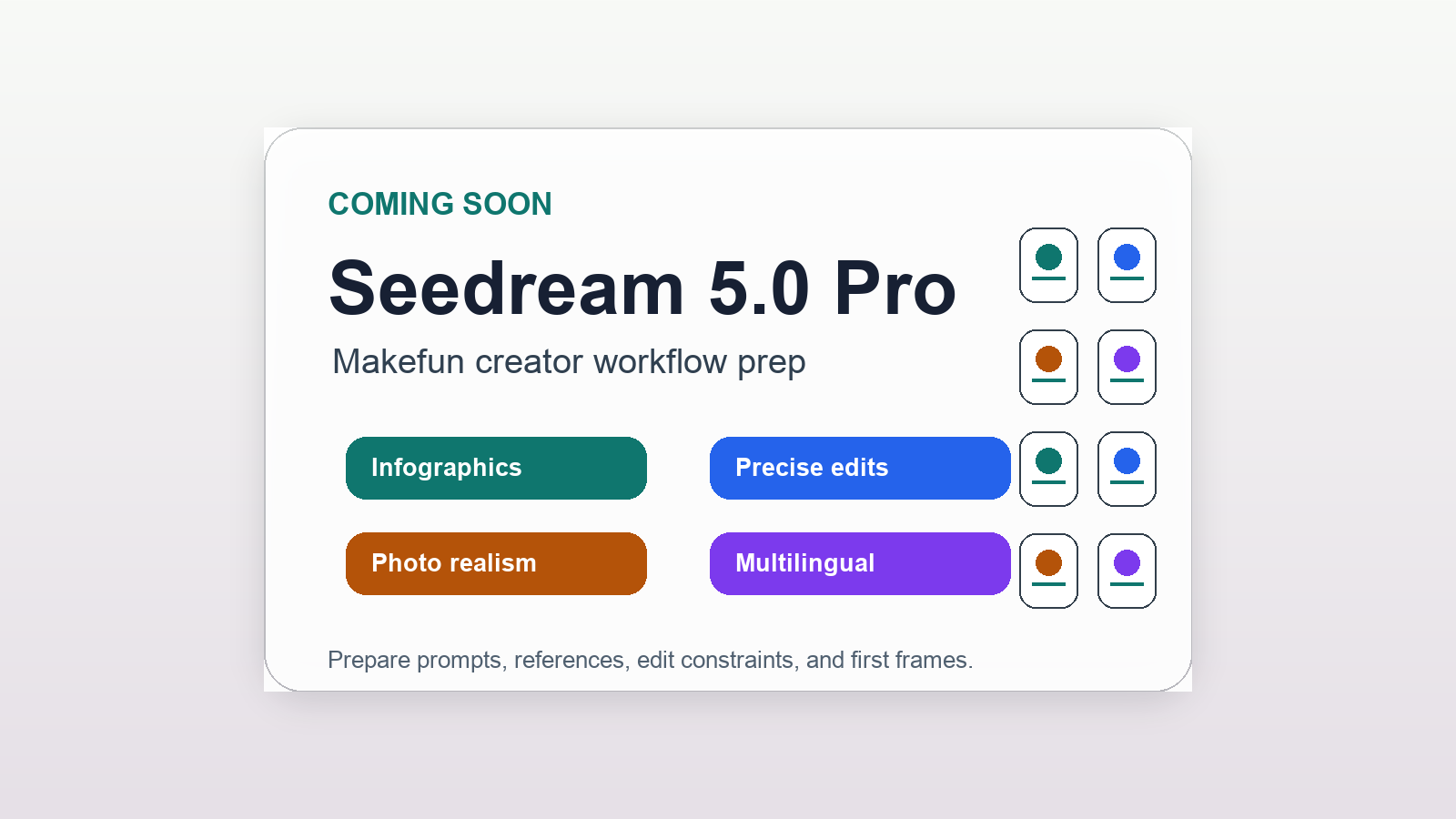
That makes the topic a strong fit for Makefun readers who already compare model-led image tools such as GPT Image 1.5, Nano Banana Pro, Flux 2 vs Nano Banana Pro, Seedream 5.0 Lite, and Luma Uni-1.
Where GPT Image 2 fits in a creator stack
A practical GPT Image 2 workflow starts with the output format, not the model name. Use it when the job requires a detailed visual brief, reference-image continuity, product-style composition, or layout-sensitive assets. For quick social thumbnails or concept boards, creators can generate several directions, keep the strongest composition, then move the selected frame into downstream video or motion work.
OpenAI’s developer model page for GPT Image 2 is also useful for teams planning API-based image generation because it describes the model’s supported modalities, image generation endpoints, image edit endpoints, and available snapshot naming.
Prompt checklist for cleaner results
- Start with the asset type: poster, product mockup, storyboard frame, thumbnail, UI concept, or editorial hero.
- Describe the subject and layout before mood words.
- Add constraints for aspect ratio, typography, negative space, and brand-safe style.
- Use reference images when the workflow depends on identity, product shape, or scene continuity.
- Review text-heavy outputs carefully before publishing because even strong image models still need human QA.
How to combine image generation with video workflows
GPT Image 2 is an image model, not a video model. The SEO opportunity is the bridge: creators can design clean source frames, thumbnails, storyboards, or product scenes first, then animate selected frames with image-to-video tools or compare the final motion step with Makefun’s AI video model guides. This separates visual direction from motion generation and helps teams avoid rewriting the entire prompt every time a video model changes.
FAQ
What is GPT Image 2?
GPT Image 2 is OpenAI’s newer image generation and image editing model. It accepts text and image inputs and produces image output.
Is GPT Image 2 only for text-to-image generation?
No. OpenAI’s model documentation lists both image generation and image edit endpoints, so a practical workflow can include reference images and editing, not only blank-canvas prompting.
Should creators use GPT Image 2 instead of every other image model?
No single model should be treated as the only answer. GPT Image 2 is a strong candidate when instruction following, layout, and reference-aware visual direction matter, while other image models may still be better for a specific look, speed, price, or integration.
How does GPT Image 2 help AI video teams?
It can help create cleaner source frames, mood boards, thumbnails, and storyboard panels before the work moves into image-to-video or all-in-one creator workflows.