Creating your own realistic, copyright-free avatar has never been easier, thanks to the power of text-to-video tools like Runway.ml and MakeFun.ai. Follow this step-by-step guide to generate a stunning video avatar that can speak any text with advanced lip-sync technology.
Step 1: Generate a Static Image
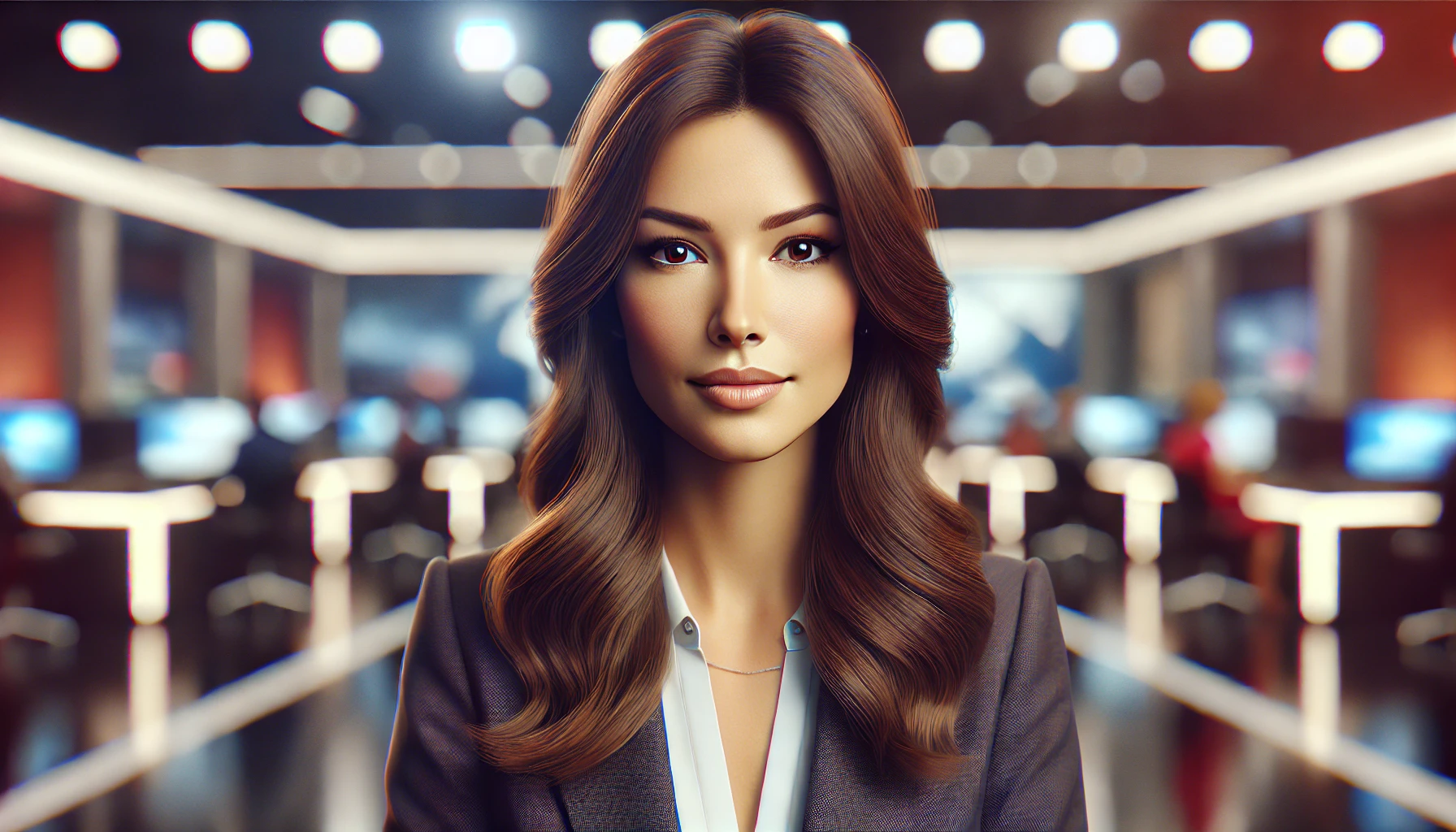
To start, we’ll create a static image using DALL-E via ChatGPT. This will serve as the visual foundation for our avatar.
Prompt for DALL-E:
Draw a landscape photo. A female news anchor, frontal view, person in the middle, speaking, upper body, shallow depth of field, bokeh, very realistic.
You’ll typically receive multiple high-quality images to choose from, making it easy to pick one that suits your needs. Here’s an example of the kind of image we generated:
And

Step 2: Convert the Image to Video Using Runway.ml
In this example, we use runway’s gen3 alpha tool. The key here is to avoid camera With our static image ready, the next step is to animate it using Runway.ml’s Gen-3 Alpha tool. The key is to avoid unwanted camera motion for a professional look. To do this, include instructions like “Static camera. The camera is still.” in your prompt to keep the background steady. Remeber to add “speaking” to your prompt to have a vivid motion picture. Because the image is informative, you do not need copy description for the person.
Runway.ml prompt:
Static camera. The camera is still. A woman, speaking, depth of field, bokeh, very realistic..
Steps to Generate the Video:
1. Select “Gen-3 Alpha Turbo”. Upload the image to Runway.ml.
2. Use the same image for both the first keyframe and last keyframe to minimize camera jitter. Note only “Gen-3 Alpha Turbo” allows you to provide both the first and the last frame.
3. Set the video length to 10 seconds.
4. Click Generate to create the animated clip.

Choose the video length of 10 seconds. Click generate.

Handling Background Motion Issues
You may notice some slight motion in the background of the first generated video.
If that happens:
1. Use the same settings and regenerate the video.
2. Repeat the process until you achieve a stable background with minimal motion.
After a few tries, you should get a smooth clip. Here’s the version we decided to move forward with:
For the second time, the background motion is less. You can roll the dice again to get a more desirable background motion. We decide to stop here and move on.
Step 3: Upload the Video to MakeFun.ai and Create Your Avatar
Once the 10-second animated clip is ready, it’s time to turn it into an avatar using MakeFun.ai.
Steps to Create the Avatar:
1. Visit MakeFun Avatar Tool.
2. Click “Add Avatar” and upload your 10-second video.
3. Select “Quick Preview” and wait a few minutes for the system to process your avatar.

Click “Quick Preview”. Wait for a few minutes. This is the preview result.
Limitations and Finalizing Your Avatar
Because the video clip is only 10 seconds long, you won’t be able to perform advanced training options like “Continue Training.” However, the preview result is still high-quality.
Once the avatar is generated, navigate to Create > My Avatars to start using it. With MakeFun.ai’s premium lip-sync technology, you can now make your avatar speak any text with impressive precision!

Using tools like Runway.ml and MakeFun.ai, creating a realistic avatar is more accessible than ever. By following these steps, you can build your own digital persona and bring it to life with text-to-speech capabilities.
Give it a try, and let your creativity shine!