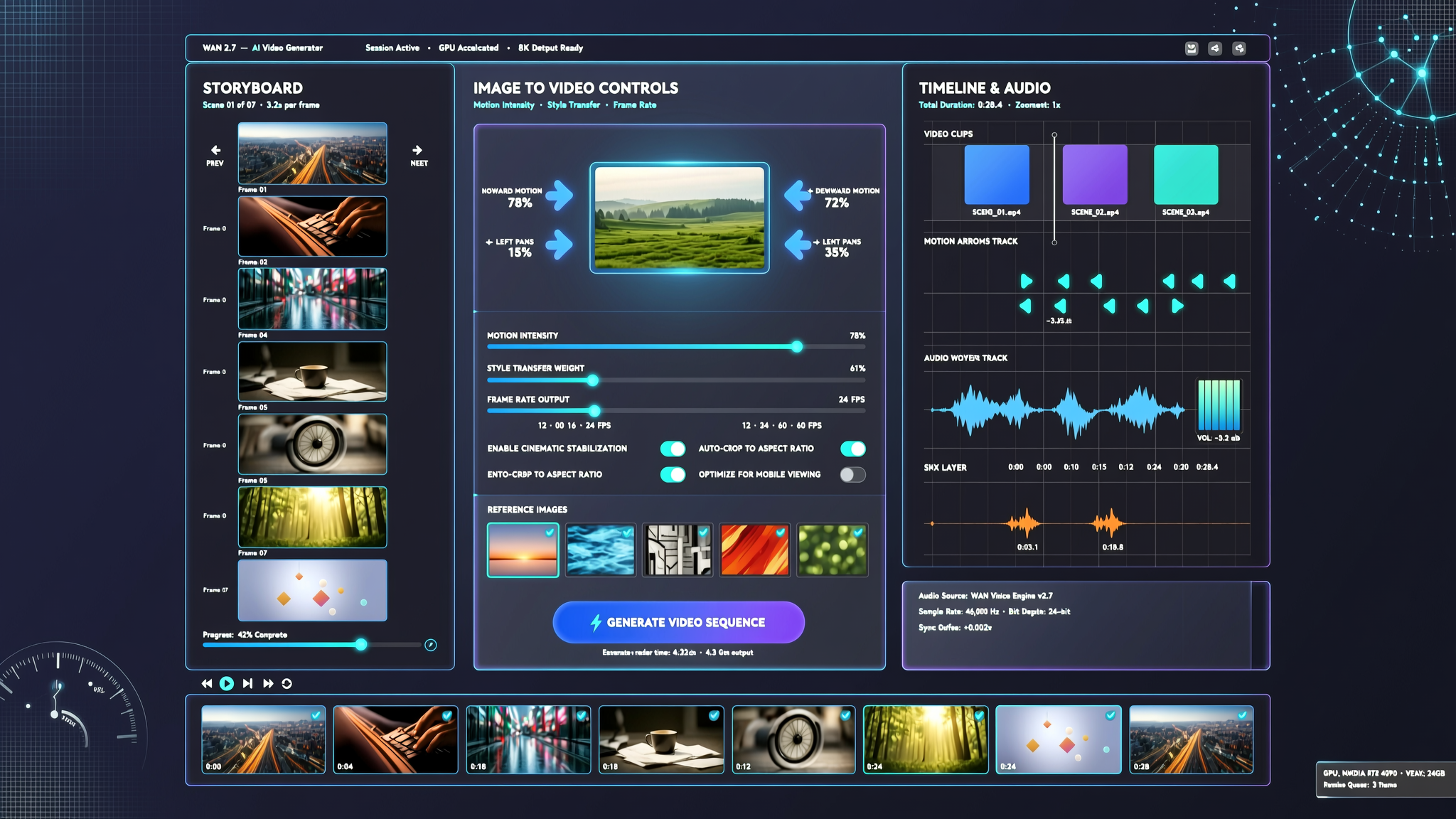
Wan 2.7 AI video generator searches are growing because creators want more control over image-to-video, reference-to-video, and editing workflows without jumping between disconnected tools. This guide explains what the public Wan 2.7 model family changes, how it fits beside existing Makefun AI video workflows, and how to plan prompts before generating a clip.
What Wan 2.7 changes for AI video workflows
Alibaba Cloud describes Wan2.7-Video as a model family for text-to-video, image-to-video, reference-to-video, and video editing. For SEO and creator planning, the important point is not just the model name. It is the shift toward a workflow where the starting image, reference material, camera direction, and editing intent are all part of the brief.
That makes Wan 2.7 a useful topic for creators who already compare Wan 2.6 Flash, Seedance 2.0, Kling 3.0 Omni, and Veo 3.1 for short-form video production.
Where Wan 2.7 fits beside Wan 2.6 Flash
Wan 2.6 Flash is a good reference point for fast image-to-video iteration. Wan 2.7, based on public model documentation, is better treated as a broader planning keyword: text prompts, image input, reference guidance, and editing instructions all matter. That search intent is different from a simple one-click generator query.
A practical Makefun workflow is to prepare a strong source image, write a concise motion brief, test the first clip, and then move into broader image-to-video or all-in-one AI video generation workflows when the visual direction is clear.
A Makefun workflow for image-to-video creators
- Start with one clean product, character, or scene image. Avoid vague collages if the clip needs consistent motion.
- Describe the action in one sentence: subject, camera movement, lighting, and ending frame.
- Add reference notes only when they reduce ambiguity, such as pose, product angle, or background mood.
- Generate a short test clip before asking for longer continuation or audio.
- Compare the result with nearby model workflows in Makefun, then refine the prompt instead of changing every setting at once.
For a wider market view, see Makefun’s AI video generator trends guide, which covers native audio, image-to-video, and all-in-one creator workflows.
Prompt checklist for Wan 2.7-style clips
- Subject: the main person, product, scene, or object.
- Motion: what changes during the clip, and what should stay stable.
- Camera: pan, push-in, orbit, handheld, macro, or locked-off shot.
- Reference assets: source image, style cue, pose, product angle, or background.
- Audio intent: silent clip, ambient sound, dialogue planning, or music-ready pacing.
- Revision note: one thing to fix after the first render.
Source notes
This article uses public model information from Alibaba Cloud’s Wan2.7-Video announcement, Alibaba Cloud Model Studio documentation, and public Replicate model routes for Wan 2.7 image-to-video and Wan 2.7 reference-to-video.
FAQ
What is Wan 2.7?
Wan 2.7 is Alibaba Cloud’s newer Wan video model family for text-to-video, image-to-video, reference-to-video, and video editing workflows.
Is Wan 2.7 only for text-to-video?
No. Public model documentation also describes image-to-video and reference-to-video variants, which makes it relevant to creator workflows that start from images or reference assets.
How is Wan 2.7 different from Wan 2.6 Flash?
Wan 2.6 Flash is useful to understand fast image-to-video iteration, while Wan 2.7 expands the discussion toward controlled prompts, references, audio-aware planning, and editing-oriented workflows.
Can Wan 2.7-style workflows help product videos and social ads?
Yes. The same planning steps can help teams prepare a product image, choose camera motion, add reference guidance, test short clips, and refine the result for social or ad creative.