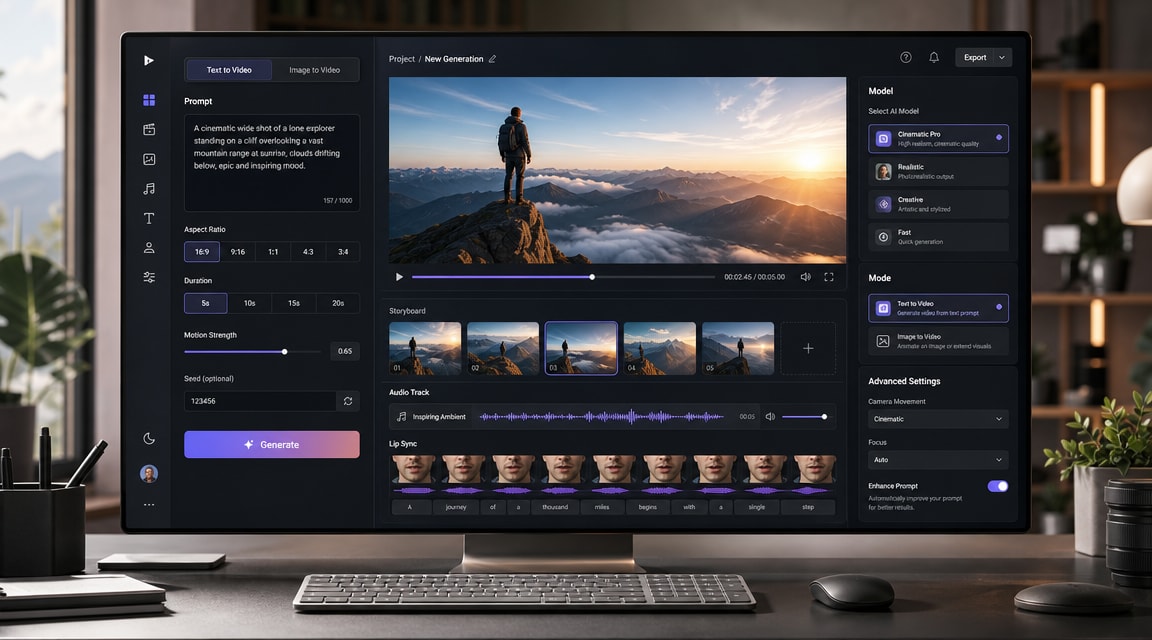
HappyHorse 1.0 AI video generator interest is rising because creators are comparing newer video models by workflow, not only by raw clip quality. Public launch and model pages describe HappyHorse around text-to-video, image-to-video, reference-to-video, 1080p output, synchronized audio, and lip-sync use cases. For Makefun readers, the practical question is where a model like this fits beside established choices such as Wan, Kling, Seedance, and Veo.
What HappyHorse 1.0 changes for AI video workflows
The strongest search signal is that HappyHorse is being discussed as a workflow model: text prompts, still images, references, and editing inputs all point toward different creation paths. The fal HappyHorse page lists API-style access for text-to-video, image-to-video, reference-to-video, and video-edit generation. A related fal explainer frames HappyHorse 1.0 around 1080p output, audio-video generation, and lip-sync, while also noting that some early technical claims need careful verification.
That mix makes the topic useful for creators who are choosing between a fast image-to-video experiment, a more controlled prompt-led clip, or a production workflow where audio and motion must be planned together.
Where it fits beside Seedance, Kling, Veo, and Wan
HappyHorse should not be treated as a replacement for every AI video model. It is better framed as one more model to evaluate inside a broader AI creation stack. Makefun already covers adjacent model choices such as Wan 2.7, Kling 3.0 Omni, Seedance 2.0, and Sora 2 vs Veo 3.1. Each model family tends to differ on motion stability, prompt adherence, audio support, latency, price, and output format.
For teams, the winning setup is usually not one model forever. It is a repeatable workflow: define the shot, test a still image or prompt, compare two or three models, keep the best result, then refine with editing, captions, or sound.
Text-to-video vs image-to-video checklist
- Use text-to-video when the scene is simple, the concept is broad, and you want quick creative variation.
- Use image-to-video when character, product, layout, or brand style needs to stay closer to a reference image.
- Use reference-to-video or video-edit modes when continuity matters more than prompt exploration.
- Compare results by motion quality, audio timing, prompt accuracy, usable resolution, and how much editing is needed after generation.
How to choose a model inside an all-in-one AI creation workflow
A model-led workflow works best when the creator can switch tools without rebuilding the whole project. That is why all-in-one AI workspaces matter for SEO and production: they let users test a new model like HappyHorse, then compare it with image generation, native-audio video trends, and existing video tools in one planning flow.
When evaluating HappyHorse 1.0, keep claims source-attributed and practical. Public pages and launch coverage describe strong audio-video and 1080p positioning, but real project choice should still depend on reliability, latency, credit cost, prompt type, and whether the model output needs additional editing before publication.
Cost and pricing comparison for HappyHorse workflows
HappyHorse is now more useful to evaluate as a paid API workflow than as a rumor. The current fal model page for Happy Horse image-to-video lists 720p generation at $0.14 per second and 1080p generation at $0.28 per second, so a 10-second 1080p test clip is about $2.80 before any downstream editing, storage, or review time. fal’s general pricing docs also note that video models are usually billed per generated second or per video, and that successful outputs draw down prepaid credits rather than charging for queue wait time or server errors.
A same-use competitor on the same provider, Seedance 2.0 reference-to-video, is priced differently: fal lists standard 720p reference-to-video around $0.3024 per second without video input, $0.1814 per second with video input, and a fast 720p tier at lower rates. That means HappyHorse can look cheaper for simple 720p/1080p image-to-video tests, while Seedance may be worth the higher unit cost when the workflow needs multiple reference images, video or audio inputs, native audio control, or stronger multi-shot direction.
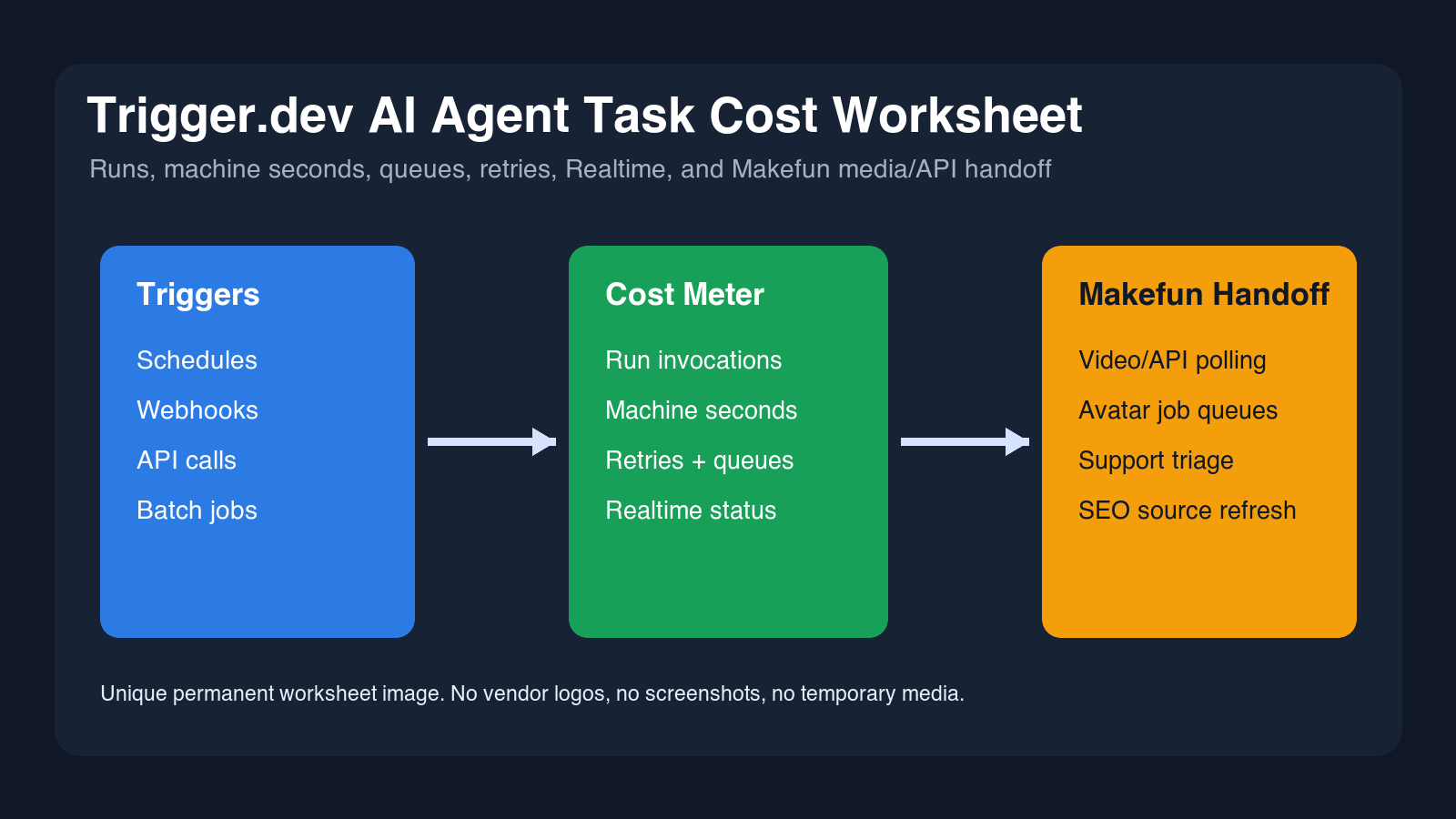
The hidden cost drivers are the same ones that matter for Makefun production planning: output duration, 720p versus 1080p, failed creative attempts that still need human review, reference-image preparation, audio or lip-sync retries, fast or priority modes, API credit minimums, watermark or commercial-use limits on wrapper sites, temporary media download windows, permanent storage, and post-processing. For a creator pipeline, the best model is the one that produces an editable clip in the fewest paid attempts, not simply the lowest per-second number.
FAQ
What is HappyHorse 1.0?
HappyHorse 1.0 is currently discussed as an AI video generation model for workflows such as text-to-video, image-to-video, reference-to-video, and video editing. Public fal pages position it around 1080p and audio-video generation use cases.
Is HappyHorse 1.0 only for text-to-video?
No. Public model pages describe multiple input modes, including image-to-video and reference-to-video. That makes it relevant for creators who start from a still image or storyboard instead of only a text prompt.
How should creators compare HappyHorse with Wan 2.7 or Kling 3.0?
Compare by the job to be done: motion realism, image consistency, prompt control, audio behavior, speed, cost, and the amount of post-editing required. A short test prompt and one reference-image test usually reveal more than a headline benchmark.
Should teams use one video model or an all-in-one AI workspace?
Teams usually benefit from an all-in-one workflow because different models perform better on different clips. Keeping model choice flexible reduces lock-in and makes it easier to route each scene to the most suitable generator.