To remove subtitles from a video, first check whether the text is an editable caption track, a separate subtitle file, or burned into the pixels. Edit or replace captions when you control the source file. Use Makefun subtitle remover only for owned or authorized videos where subtitles, translation overlays, or lower thirds are hardcoded into the frame, then QA faces, product edges, UI text, and fast motion before exporting.
Publication checks refreshed the official YouTube caption editing docs, YouTube automatic captions docs, YouTube subtitle file format docs. Those sources matter because the cleanest fix for a caption problem is often not pixel cleanup. If the caption can still be edited, retimed, deleted, or replaced at the platform or file level, do that first and keep the video pixels intact.

Quick answer: identify the subtitle type before cleanup
Start by separating editable captions from burned-in subtitles. If the creator still controls a caption track or subtitle file, edit that source. Use AI cleanup when the text is baked into the image and the video is yours, licensed, or approved by the client. Cleanup quality depends on motion, background texture, product labels, hands, faces, and whether the subtitle covers important detail.
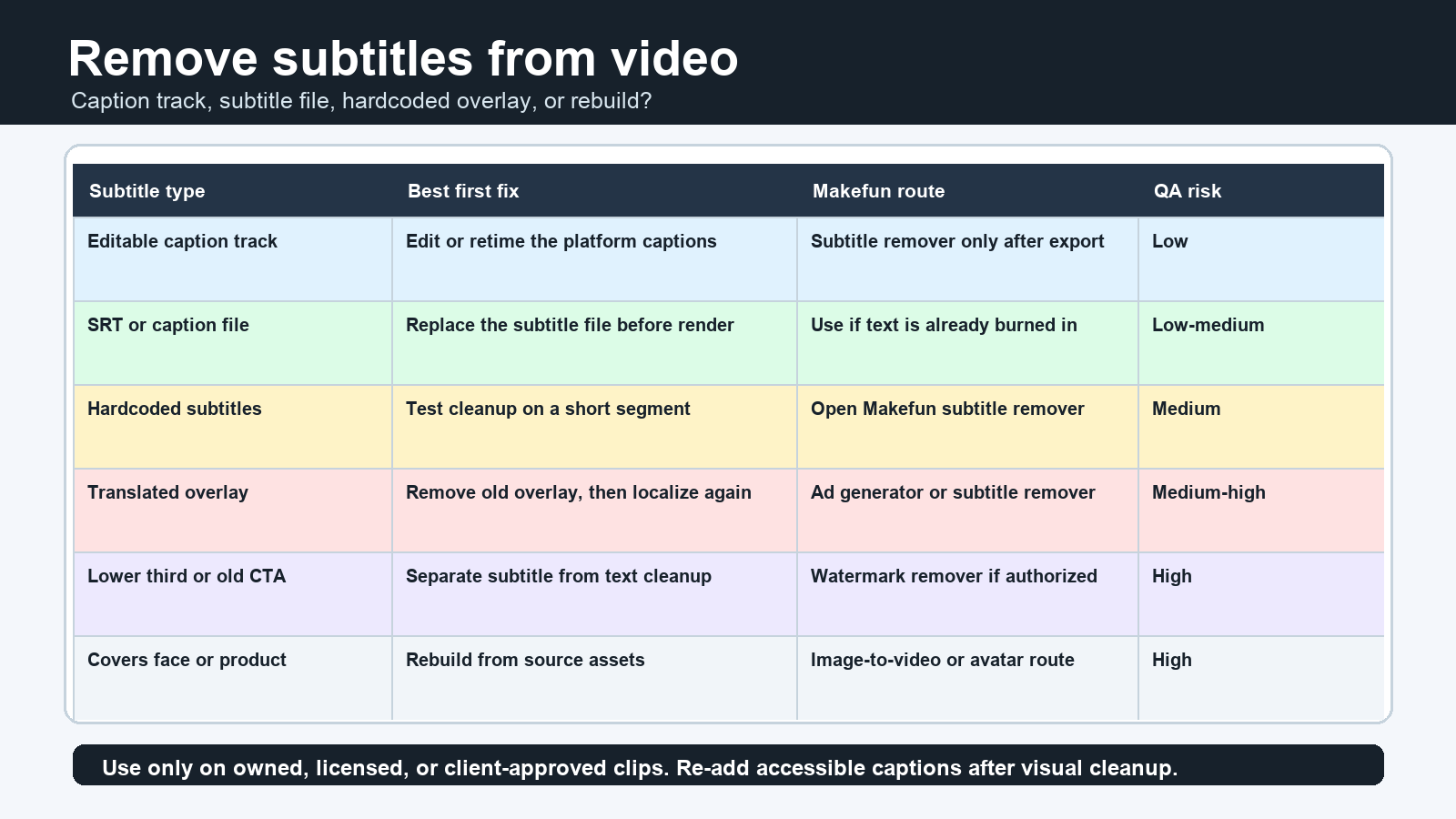
Subtitle cleanup decision matrix
| Subtitle or text type | Best first fix | When to use Makefun | Quality risk |
|---|---|---|---|
| Editable YouTube caption track | Edit, retime, or remove the caption track in the platform workflow. | Only if an exported owned clip has the text burned into the image. | Low when handled as captions; unnecessary pixel cleanup can reduce quality. |
| Separate SRT, SBV, or caption file | Correct or replace the subtitle file, then re-export the video. | Use only when the corrected file is unavailable and the text is already burned in. | Low if the file is replaced; medium if cleanup crosses textured backgrounds. |
| Hardcoded subtitles across a product demo | Run subtitle cleanup on a short segment and inspect product edges. | Use Makefun subtitle remover when the team owns or is authorized to edit the footage. | Medium near hands, labels, UI panels, and fast camera movement. |
| Translated overlay on an old social ad | Remove the old overlay, then add a fresh localized caption track or new creative text. | Use for authorized campaign reuse before rebuilding the ad variant with the AI video ad generator. | Medium to high if the overlay covers faces or product claims. |
| Lower third, old CTA, date stamp, or logo mixed with captions | Separate subtitle cleanup from watermark or text-overlay cleanup. | Use subtitle remover for captions and watermark remover only for authorized text or logo cleanup. | High when multiple overlays occupy the same area or cover important detail. |
| Subtitle covers critical face, label, or UI detail | Consider rebuilding the clip from the source image, script, or approved avatar asset. | Use image-to-video or AI avatar video generator routes when cleanup would damage the message. | High; rebuilding may be cleaner than removing pixels. |
How to prepare the clip for subtitle removal
- Export the highest-quality source available and keep a backup copy.
- Trim only the section that needs cleanup before processing a long video.
- Test a short section first when subtitles cross product edges, faces, hands, UI text, reflective surfaces, or fast camera motion.
- For product demos and ad clips, preserve readable product labels and legal disclaimers instead of removing text blindly.
Makefun workflow route map
The primary route for hardcoded subtitles and translated overlays is Makefun subtitle remover. Use watermark remover only when a logo, date stamp, or old CTA is yours or authorized for cleanup. If cleanup harms the scene, rebuild an owned asset with image-to-video, the AI video ad generator, or the AI avatar video generator.
Authorized-use and quality guardrails
- Confirm the video is owned, licensed, or client-approved for editing.
- Do not remove attribution, copyright marks, platform marks, or creator branding from third-party content without permission.
- Keep editable captions available where possible; removing burned-in text is not a substitute for accessibility captions.
- Avoid claims that every subtitle can be removed perfectly.
Before and after QA checklist
- Review faces, hands, product edges, UI text, labels, gradients, and fast movement.
- Check for frame-to-frame flicker where the subtitle used to be.
- Export at the intended aspect ratio and platform size before publishing.
- Re-add accessible caption tracks after visual cleanup when the final platform supports them.
FAQ
Can I remove subtitles from any video?
No. Limit this workflow to videos you own, license, or are authorized to edit. Editable caption tracks and subtitle files should be corrected at the source when possible.
What is the difference between captions and hardcoded subtitles?
Captions or subtitle files can often be edited, deleted, or replaced without changing the video pixels. Hardcoded subtitles are part of the image, so cleanup requires restoration and quality review.
Will AI subtitle removal blur my product demo?
It can if the subtitle overlaps product edges, labels, UI text, hands, faces, or fast motion. Run a short test and inspect the result before processing the full clip.