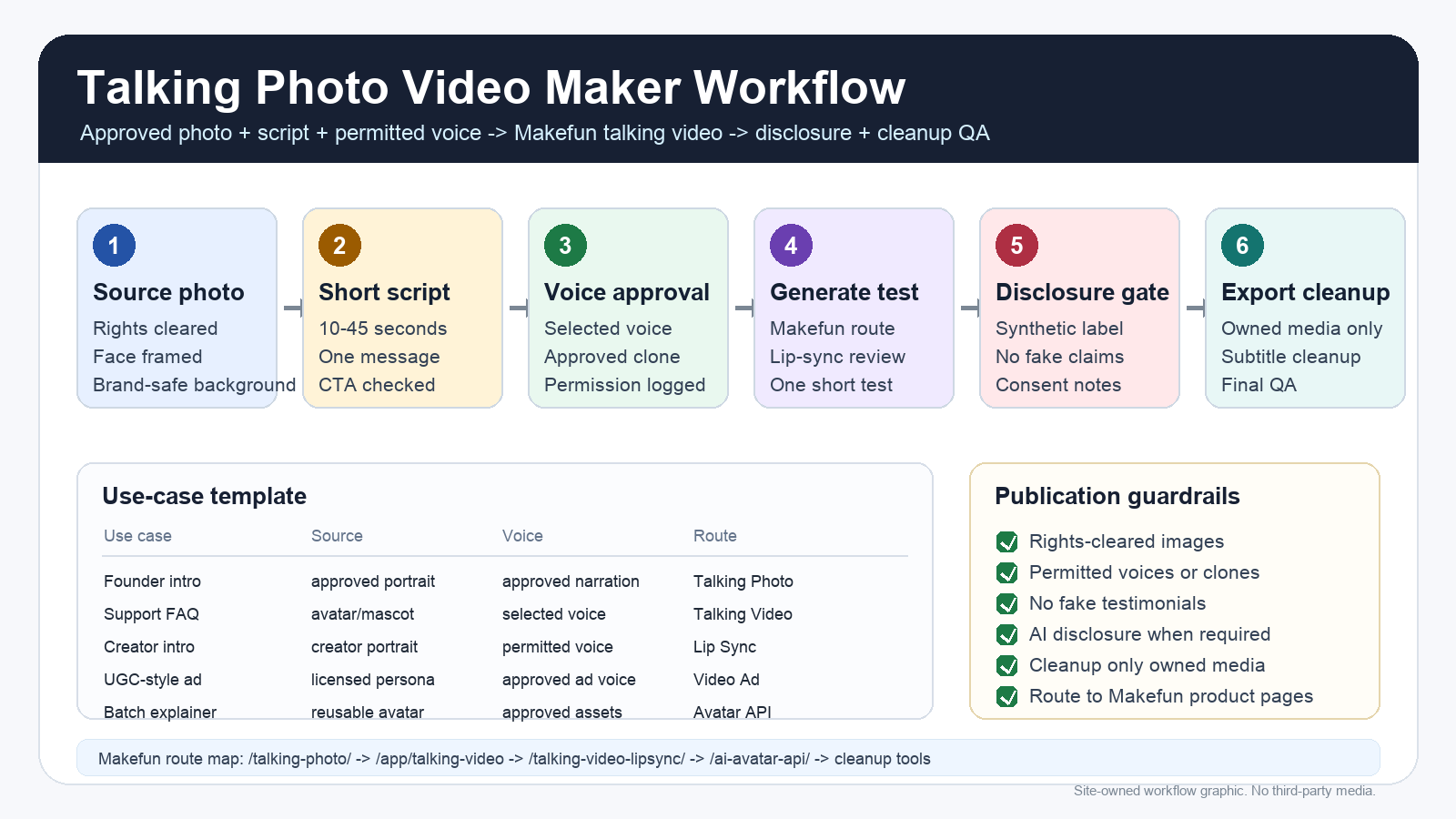
A talking photo video maker is useful when you have an approved portrait or avatar image, a short script, and a voice you have permission to use. The practical workflow is: confirm image and voice rights, write a 10-45 second script, generate a short talking-video test in Makefun, review lip sync and disclosure needs, then clean subtitles or watermarks only on owned or licensed media before export.
This article is a workflow template and consent checklist. For the product route, start with Makefun Talking Photo. Use Makefun Talking Video for script and talking-video generation, Talking Video Lip Sync for replacement audio, and AI Avatar API when the same process needs production scale.

Input checklist before generation
The safest talking-photo workflow begins before the render. Check that the image is approved, the face is framed clearly, the background is brand safe, the script is short enough for one clip, and the voice or narration asset is permitted for the project.
- Use only approved or rights-cleared images.
- Use only approved voices, narration, uploaded audio, or clone workflows.
- Keep the first script focused: 10-20 seconds for intros and 20-45 seconds for explainers.
- Avoid public-figure, celebrity, customer-photo, and employee likeness examples unless rights are documented.
- Add platform-specific AI or synthetic-content disclosures when realistic altered content requires it.
Workflow template: photo, script, voice, review, export
| Use case | Source image | Script length | Voice option | Disclosure gate | Route | Success check |
|---|---|---|---|---|---|---|
| Product founder intro | Approved founder portrait or brand avatar | 20-45 seconds | Founder-approved narration or selected voice | Do not imply endorsement or personal statement beyond the approved script | Makefun route | Clear face motion, readable CTA, no misleading claim |
| Support FAQ clip | Mascot, presenter image, or approved support avatar | 15-30 seconds | Selected narration voice | Avoid pretending a real customer or employee said something without permission | Makefun route | One answer per clip and product route visible |
| Creator intro reused across shorts | Creator-approved portrait | 10-20 seconds | Creator-approved voice or uploaded audio | Keep likeness and voice permission documented | Makefun route | Natural mouth timing and platform-safe disclosure |
| UGC-style ad variant | Licensed persona, internal actor, or brand avatar | 15-35 seconds | Approved ad narration | Do not create fake testimonial or undisclosed material connection | Makefun route | Claim, disclosure, and landing-page route match |
| Batch explainer production | Approved reusable avatar image | Template-driven short scripts | Approved narration assets or voice workflow | Document likeness, voice, disclosure, and takedown requirements | Makefun route | Repeatable template, metadata, and review trail |
Consent and disclosure guardrails
Talking-photo videos can look realistic, so consent and disclosure are part of the production workflow, not an afterthought. Use official platform guidance such as YouTube synthetic or altered content disclosure guidance when realistic AI-generated or meaningfully altered content may need labeling. Keep the article practical and original in line with Google Search people-first content guidance.
| Gate | Publisher check |
|---|---|
| Image rights | The portrait, avatar, product photo, or brand asset is owned, licensed, or approved for the intended use. |
| Voice rights | The narration, uploaded audio, or voice clone is approved for this project. Use Makefun Voice Clone only when voice rights are clear. |
| Endorsement risk | Do not imply that a real person used, reviewed, or endorsed a product without permission and disclosure. |
| Cleanup rights | Use subtitle cleanup and watermark removal only for owned, licensed, or authorized media. |
Makefun route map
Use Talking Photo for portrait-to-talking-photo intent. Use Talking Video when you need to test a script and generate the clip. Use Talking Video Lip Sync when the source clip already exists and the job is replacement audio. Use AI Avatar API for repeatable avatar production with metadata, review notes, and batching.
For plan or credit details, treat Makefun pricing as the live source. This template avoids hard-coded price claims because pricing can change; the stable drivers are clip length, retries, voice preparation, cleanup steps, API volume, storage, and review time.
How to test one clip before scaling
- Prepare one approved source image and one short script.
- Choose a permitted narration voice or approved voice-clone route.
- Generate one short test in Makefun before batch production.
- Review lip sync, expression, disclosure notes, captions, and landing-page route.
- Move to API or batch production only after the short test passes.
FAQ
What do I need to make a talking photo video?
Start with an approved portrait or avatar image, a short script, a voice you have permission to use, and a disclosure plan for realistic or promotional content.
How long should the first talking-photo script be?
Use 10-20 seconds for intros and 20-45 seconds for product explainers or FAQ clips. Test one short clip before scaling the workflow.
When should I use voice clone?
Use voice clone only when the voice rights and consent are clear. Otherwise use selected narration or uploaded audio that is approved for the project.
Does a talking photo video need an AI disclosure?
Disclosure depends on context and platform, but realistic AI-generated or meaningfully altered content often needs clear labeling. The article should link to official YouTube guidance and avoid blanket legal claims.
Can I remove subtitles or watermarks after generation?
Use cleanup tools only for videos your team owns, licenses, or is authorized to edit. Do not encourage removing marks or captions from third-party content.