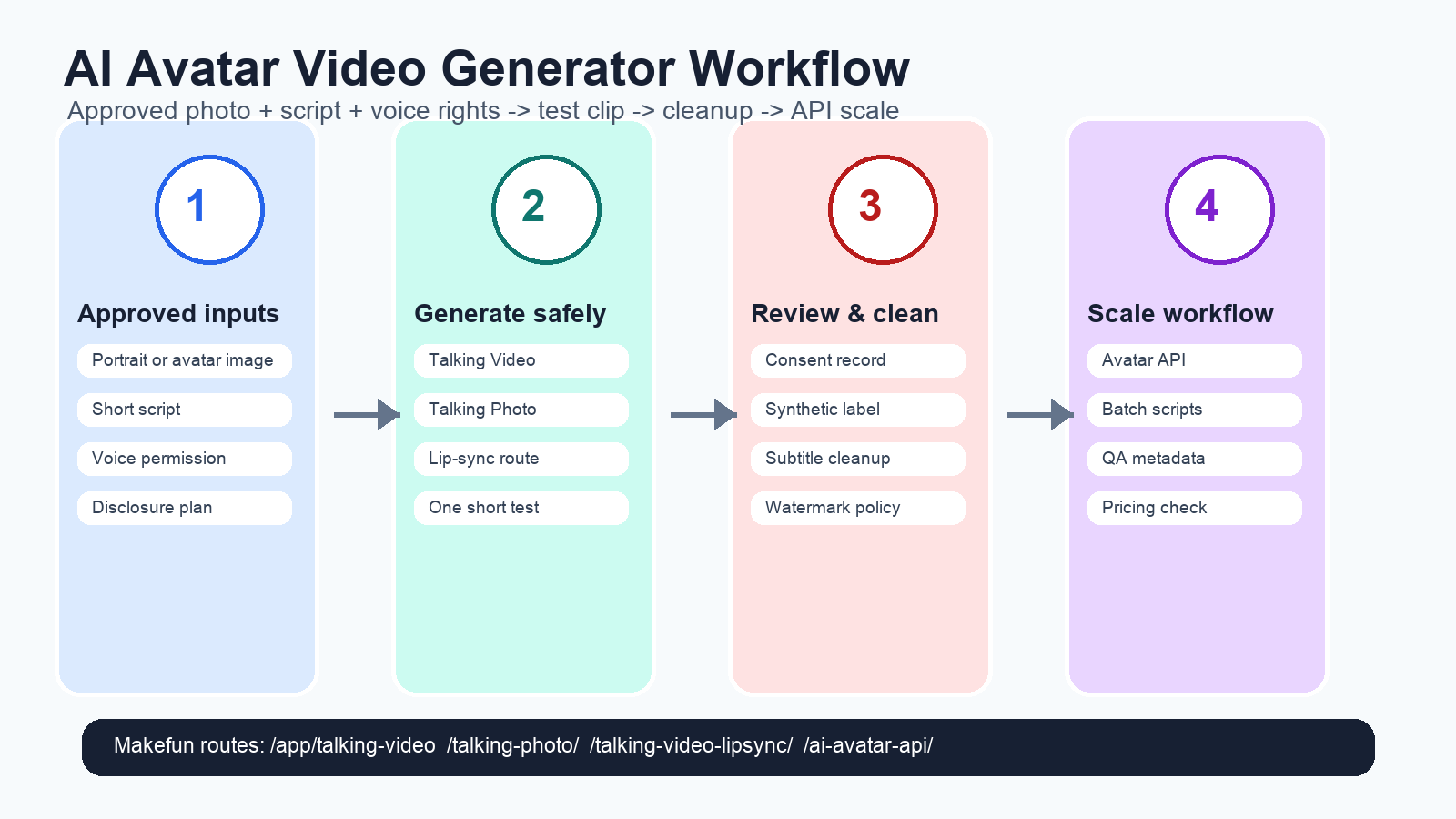
Use an AI avatar video generator when you have an approved portrait or avatar image, a short script, and clear rights for the voice or likeness. The safest workflow is simple: confirm consent, choose the Makefun talking-video or lip-sync route, generate one short test, clean subtitles or watermarks only on owned or licensed media, then use the AI Avatar API when the same avatar format needs to scale.
Start with Makefun Talking Video for a fast test. Use Talking Photo for portrait animation, Talking Video Lip Sync for replacement audio, and AI Avatar API for repeatable production.
Workflow matrix: choose by input and output goal
The best avatar workflow depends on the source input, the voice option, the rights gate, and the cleanup step before publishing.
| Input | Best Makefun route | Rights gate | Best use case |
|---|---|---|---|
| Approved portrait plus explainer script | Talking Photo and Talking Video | Confirm image permission, script approval, and voice rights. | Founder intro, product explainer, onboarding video. |
| Existing presenter video plus replacement audio | Talking Video Lip Sync | Avoid impersonation and keep likeness and narration consent records. | Localized explainer, support video, training clip. |
| Batch avatar videos from script templates | AI Avatar API | Document likeness, voice, endorsement, disclosure, and takedown requirements. | Scaled product explainers and ecommerce help-center videos. |
| Avatar ad or UGC-style product clip | Talking Video plus AI Video Ad Generator | Check material connection, testimonial, and synthetic-content disclosure before use as an ad. | Short paid social variant or landing-page explainer. |
Consent and likeness checklist
Avatar videos can look realistic, so the publication gate matters as much as the rendering tool. Keep the workflow limited to approved or rights-cleared portrait images, approved voice or narration assets, reviewed scripts, and a clear disclosure plan for realistic or promotional content.
| Check | What to confirm before publishing |
|---|---|
| Image approval | The portrait, avatar, or source video is owned, licensed, or explicitly approved for this use. |
| Voice approval | Use an approved narration asset or the Makefun voice clone route only when voice rights are clear. |
| Endorsement context | Do not imply that a real person used, reviewed, or endorsed a product without permission and disclosure. |
| Synthetic-content label | Refresh platform guidance such as YouTube altered or synthetic content disclosure before upload. |
| Marketing disclosure | Review official guidance such as the FTC consumer reviews and testimonials rule Q&A when an avatar is used in promotional or testimonial content. |
| Cleanup rights | Use subtitle cleanup and watermark removal only for owned, licensed, or authorized media. |
Makefun route map
For a one-off creator job, prepare the photo, paste a short script, and test the result in Makefun Talking Video. For a portrait-first workflow, use Talking Photo. For an existing clip with new narration, use Talking Video Lip Sync. For production volume, hand the same avatar rules to the AI Avatar API so scripts, consent records, review notes, and output metadata can move through a repeatable queue.
Use Makefun pricing as the live source for current plan or credit details. Pricing drivers usually come from input count, avatar render tests, voice cloning or narration, retakes, cleanup jobs, API volume, storage, and human review. Run one short clip before committing a batch.
Where avatar video fits in a Makefun campaign
Avatar videos work best when they answer a focused job: a founder intro, a training clip, a localized support answer, a product walkthrough, or a short ad variant. If the goal is broader model selection, use a selector article such as OmniHuman 1.5 digital human video as supporting context, then return to a Makefun route for the actual workflow.
FAQ
What do I need to make an AI avatar video?
Start with an approved photo or avatar image, a short script, a voice choice you have rights to use, and a disclosure plan for realistic or promotional content.
When should I use Talking Video instead of the AI Avatar API?
Use Talking Video or Talking Photo for one-off creator and explainer jobs. Use the AI Avatar API when the same avatar workflow needs repeatable scripts, batches, metadata, QA, and integration into a production system.
Can I clone someone else’s voice for an avatar video?
Only when the voice rights and consent are clear. Avoid impersonation, keep approval records, and refresh platform disclosure guidance before publication.
Does an AI avatar video need a disclosure?
Disclosure depends on context and platform, but realistic AI-generated or meaningfully altered content often needs clear labeling. Use the official platform and regulatory links above as practical checks rather than as legal advice.
Can I remove subtitles or watermarks from avatar videos?
Use cleanup tools only for videos your team owns, licenses, or is authorized to edit. Do not remove marks or captions from third-party content to hide source, ownership, or license restrictions.